Signing in
Panthera Insight has no in-app password. Every sign-in starts with a fresh 6-digit code emailed to you. After the first successful sign-in you may choose to keep the session cached on the device — subsequent app launches then re-open with your device's own unlock method (fingerprint, face, or your device's PIN / passcode), without needing a new code each time.
In other words, the only two things you can be asked for are:
- A sign-in code from your inbox, and
- Your device unlock (same fingerprint / face / PIN you use to unlock the device itself).
Important Declaration
Panthera Insight and the team will never request any pin and password from you. You should never disclose any of these, including the email verification code, even if you're seeking assistance from our end.
Signing in with an email code
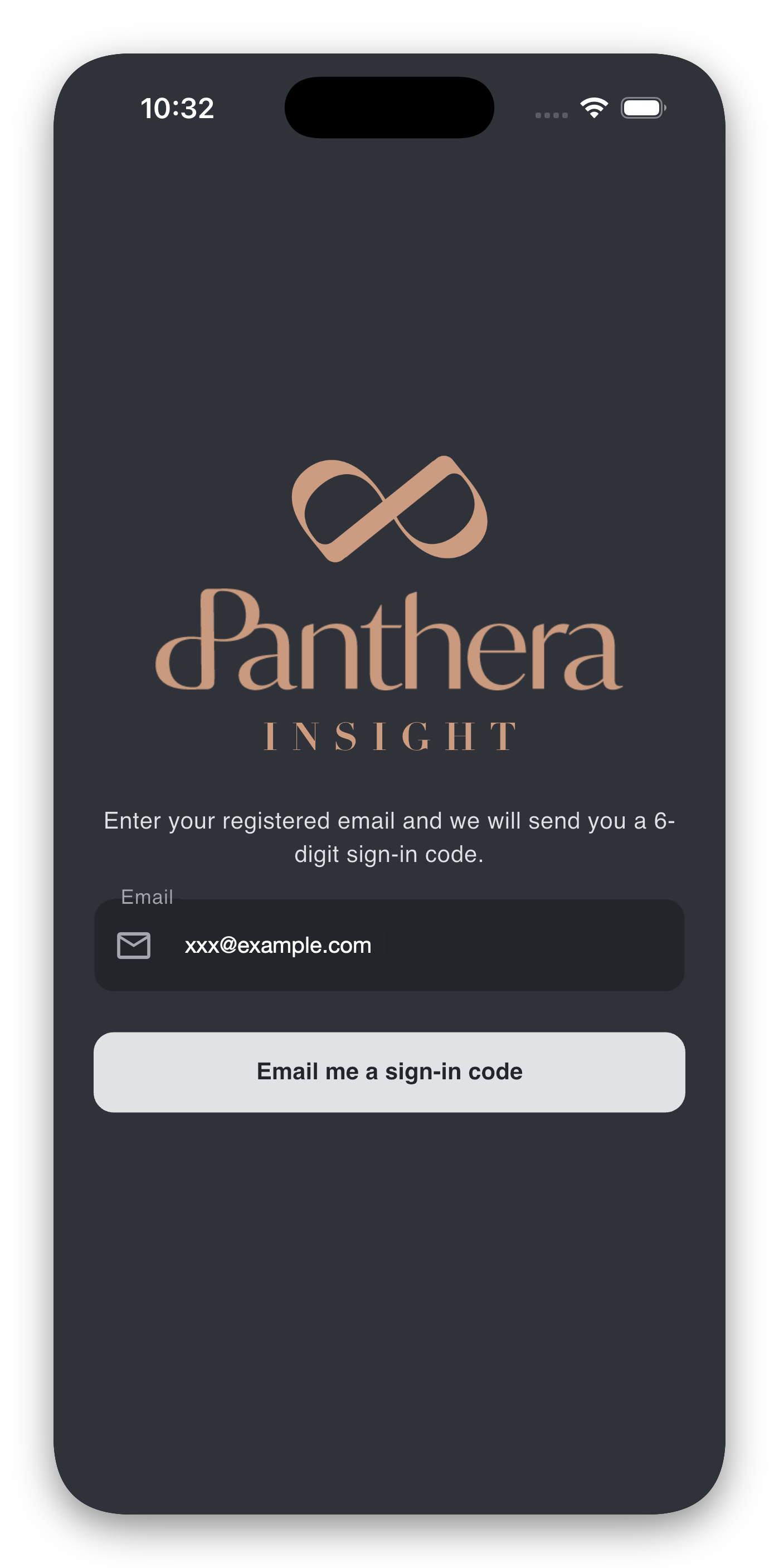
- Open the app. After the disclaimer, you arrive at the sign-in screen.
- Enter your email address.
- Tap Email me a sign-in code. The code arrives within a few seconds.
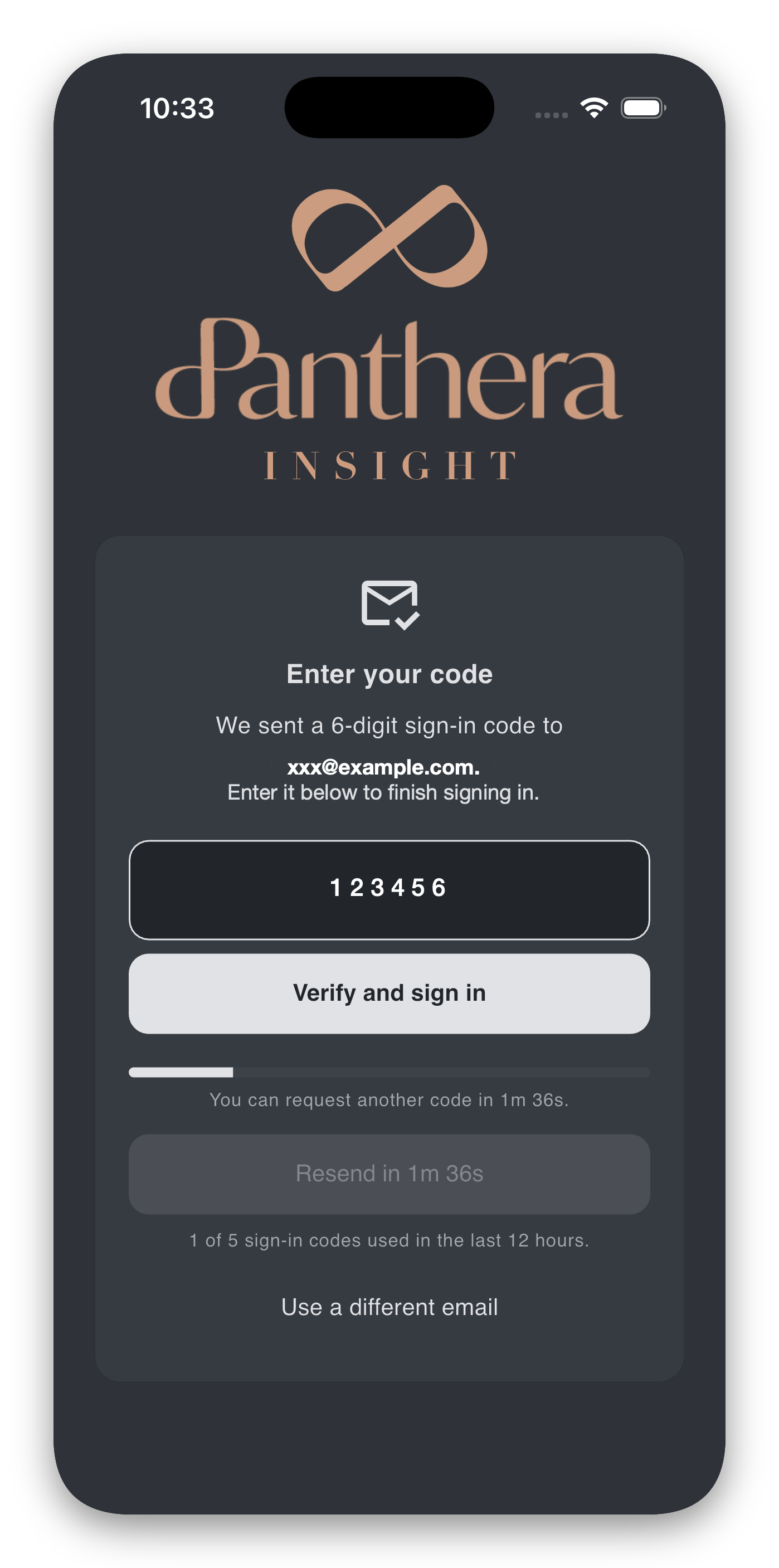
- Enter the 6-digit code.
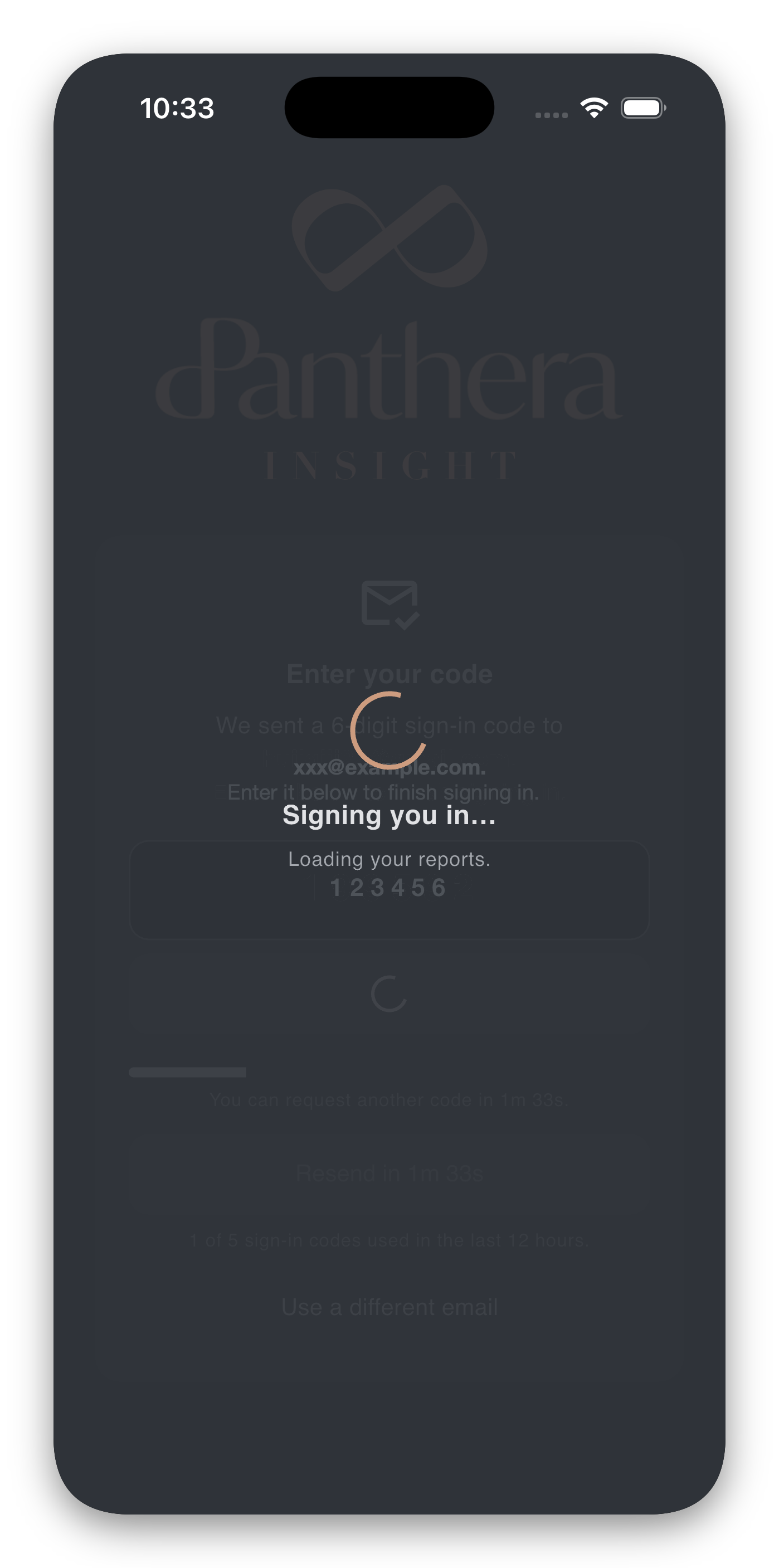
- Tap Verify and sign in. A short "Signing you in… Loading your reports." overlay appears, then the report home loads.
If the code does not arrive
Check your spam / junk folder first. If it still does not appear after about a minute, tap Resend code. A short cooldown (around two minutes) applies between resends — the button shows Resend in M:SS while it counts down, with a progress bar underneath. You can also tap Use a different email if you typed the wrong address.
If the code is rejected
Codes expire after a short window and can only be used once. The most common cause is a typo or an old code from a previous email. Request a fresh one with Resend code.
If you see "Try again in M:SS" under the Verify button
After repeated failed verification attempts the app puts a short cooldown (around five minutes) on the Verify button to protect your account. Wait for the countdown to finish; a fresh code may also be requested in the meantime.
Too many attempts. You have used your daily sign-in codes…
For security, the app limits how many sign-in codes can be requested per day. If you hit the daily limit, a red banner appears and you will need to try again after 12 hours — or contact your relationship manager if you need access sooner.
Keep me signed in
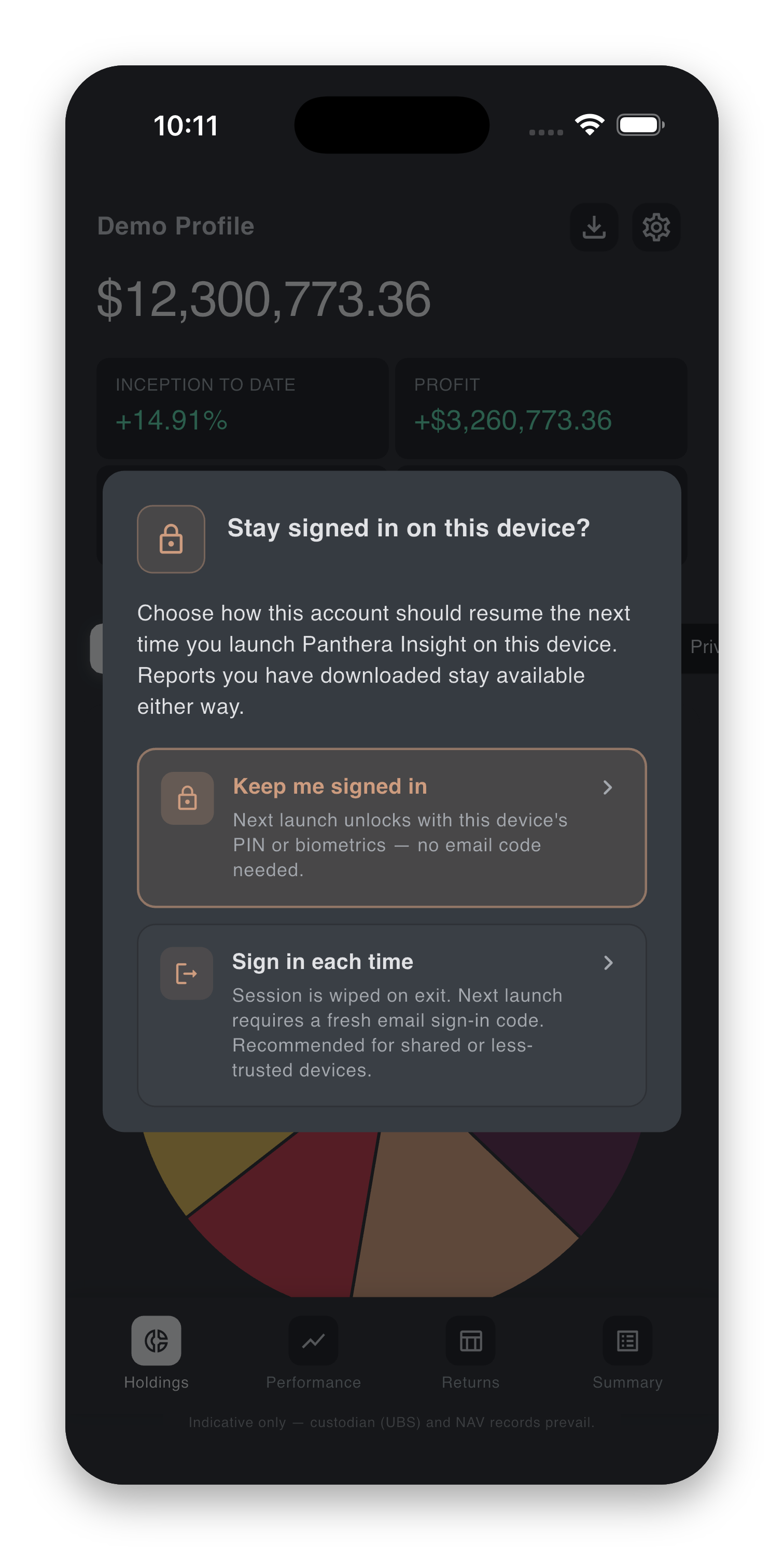
Immediately after your first successful sign-in, the app shows a dialog titled "Stay signed in on this device?" with two choices:
- Keep me signed in (recommended). The next launch unlocks with this device's PIN, fingerprint, or face — no email code needed. The session remains cached on this device until you sign out or it expires.
- Sign in each time. The session is wiped when you exit the app. The next launch requires a fresh email code.
Pick whichever fits how you use the app. You can change your mind any time in Settings → On Exit → Keep me signed in.
If your device has no PIN or biometrics set
The prompt is skipped automatically and the app shows: "Sign-in caching is unavailable because this device has no PIN or biometrics set. You will be asked for an email code each launch." Set up a screen lock in your device's system settings to enable the option.
Re-opening the app — the lock screen
If you chose Keep me signed in, the app shows a lock screen when you:
- Re-open the app from cold, or
- Return to it after it has been in the background for a couple of minutes.
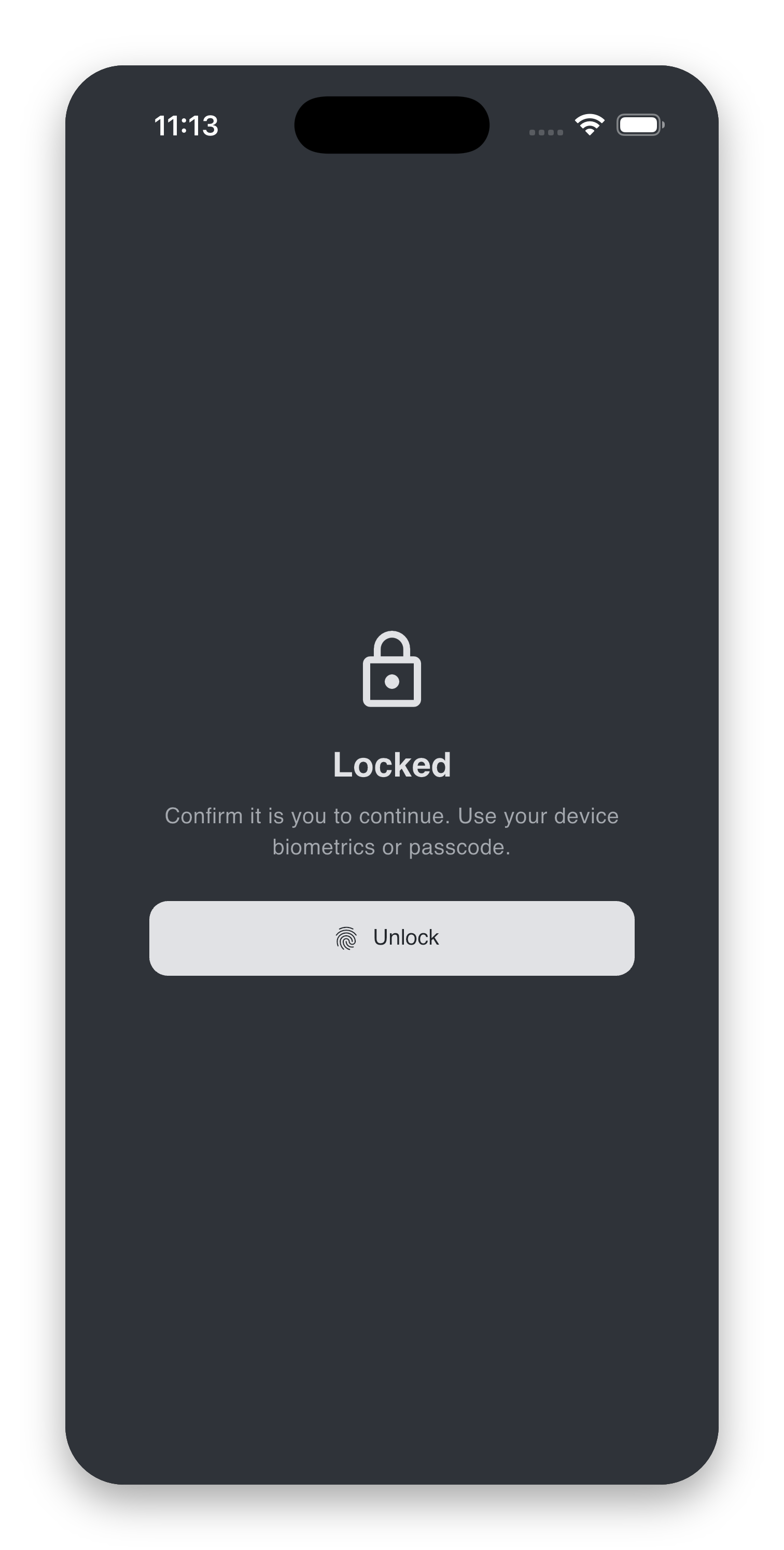
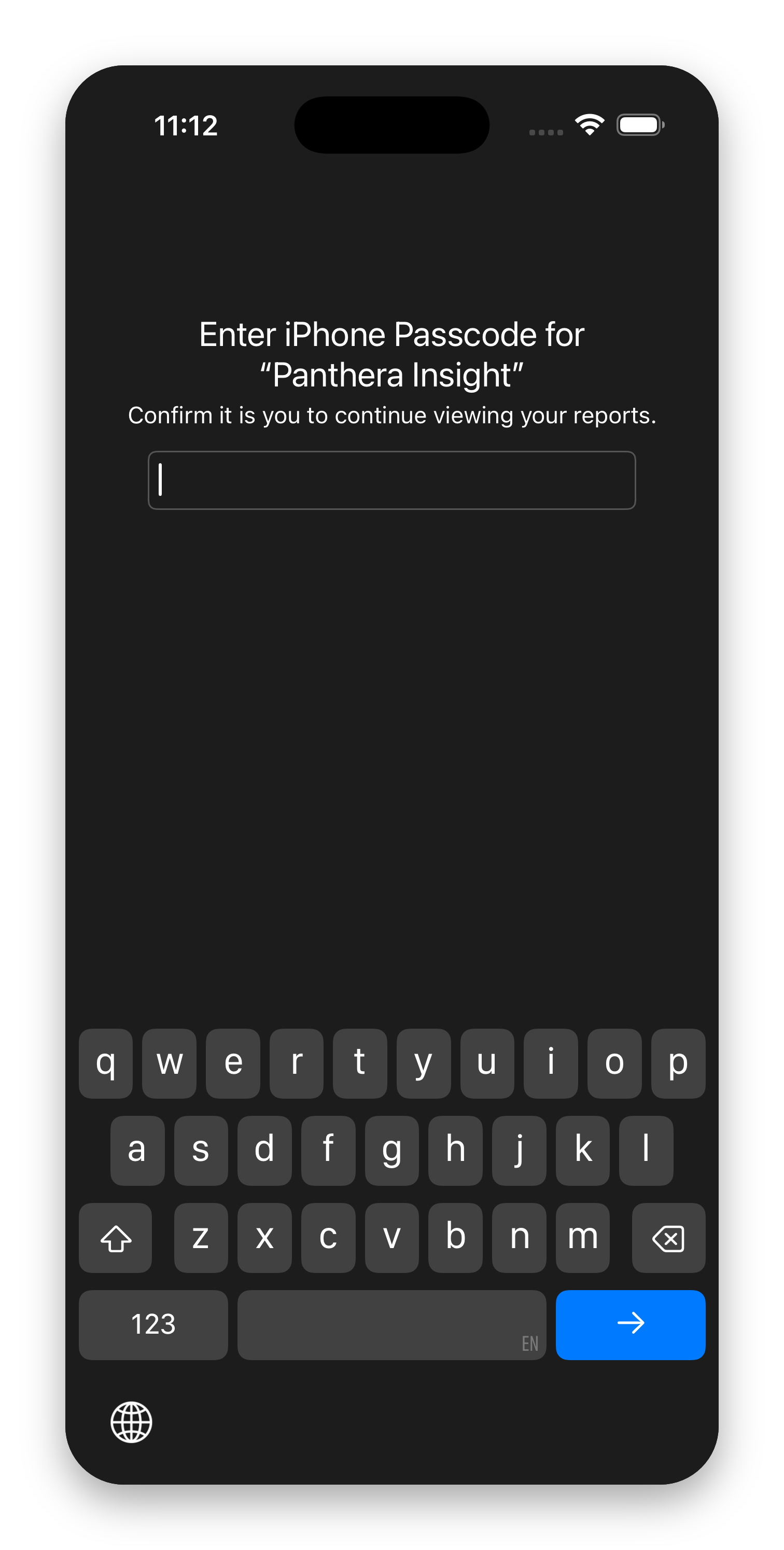
The screen shows a lock icon and "Confirm it is you to continue. Use your device biometrics or passcode." Tap Unlock, complete the device prompt, and the app opens silently to wherever you left off.
If the unlock fails
After multiple failed unlock attempts the lock screen shows "Too many failed attempts. Try again in M:SS." Wait for the countdown to finish and try again. If the device unlock simply does not prompt, see Troubleshooting.
If your session has expired
Sessions expire after a long period of inactivity or after a security-sensitive change. When that happens the app returns to the sign-in screen and asks for a fresh email code, even if Keep me signed in is on. This is expected.
Signing out
- Sign out on this device (Settings → Account) clears your session on this device only.
- Sign out everywhere (Settings → Account) ends the session on every device where you have signed in. Use this if you suspect unauthorised access, if you have lost a device, or if you just want a clean slate.
After signing out everywhere, the next sign-in starts fresh with a new email code.
See Settings → Account for the exact buttons.
If you still cannot sign in
Have a look at Troubleshooting → Sign-in problems. If nothing there helps, email it@pantherafo.com.